
Integrations Setup
Kindo supports integrations using Nango for authentication and the MCP protocol for agent access to external systems. Most MCP servers are built in-house and run by the customer as part of a self-managed installation, though a growing number of official hosted MCPs can be accessed directly.
Nango Setup
Connecting Nango to Your Installation
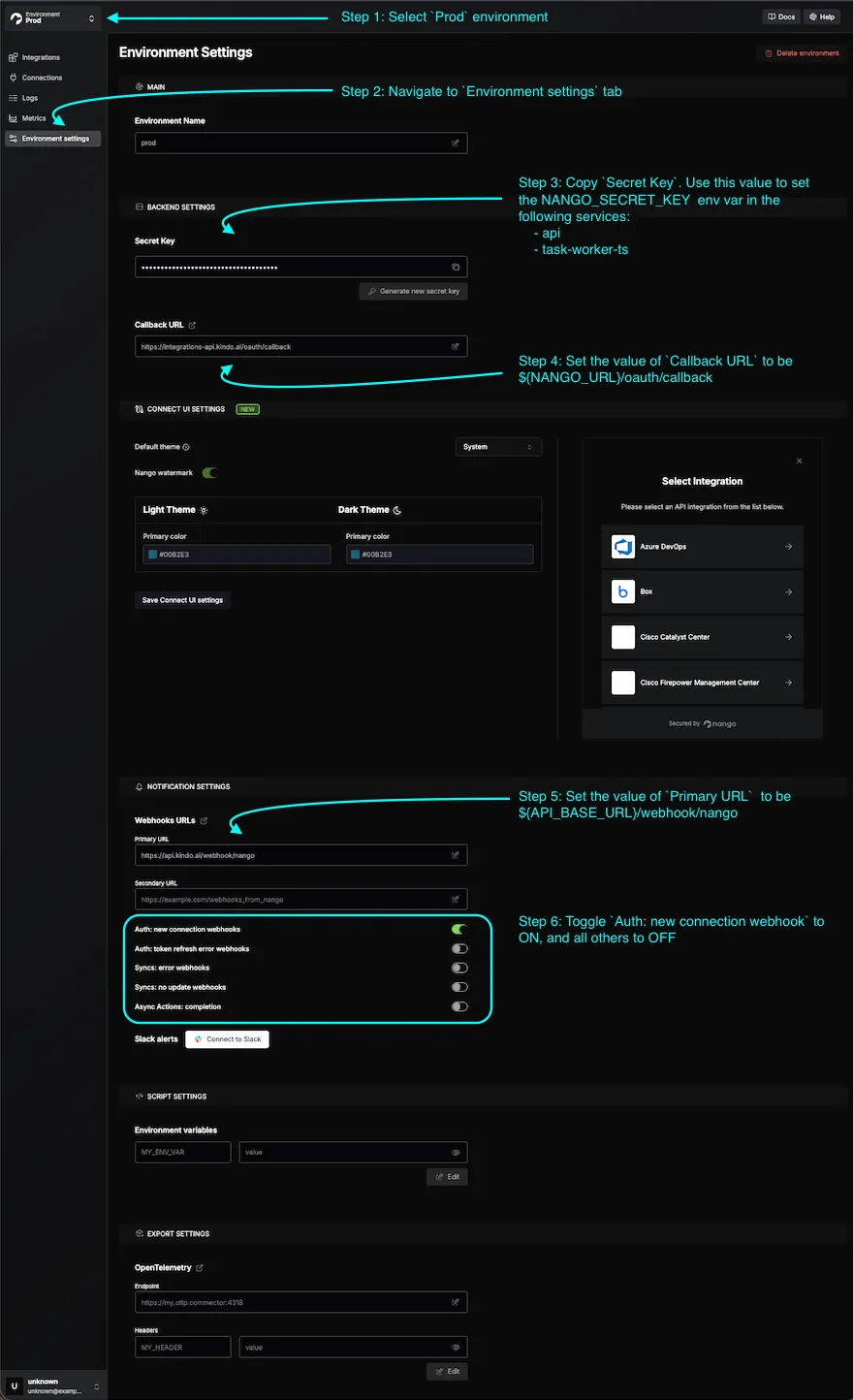
1. Set Environment Variables in Kindo
| Variable | Description | Required Services |
|---|---|---|
NANGO_SECRET_KEY | Shared secret key for Nango integrations | api, task-worker-ts |
NANGO_URL | Host on the Ingress pointing to the nango service (must match your Nango dashboard URL) | api, task-worker-ts |
API_INTEGRATION_WEBHOOK_BASE_URL | The URL of your API service with /webhook/integration-connection appended (e.g., https://<API_HOST>/webhook/integration-connection). This is where third-party services (Linear, Jira, etc.) send webhook events. | task-worker-ts |
NEXT_PUBLIC_NANGO_API_URL | Same as NANGO_URL | next |
NEXT_PUBLIC_NANGO_CONNECT_URL | Host on the Ingress pointing to the nango-connect-ui service | next |
2. Set Environment Variables in Nango
-
Set the Callback URL to
${NANGO_URL}/oauth/callback. -
Configure the webhook:
- In the Nango dashboard, go to Environment Settings > Webhook URLs.
- Set Primary URL to
${API_BASE_URL}/webhook/nango(whereAPI_BASE_URLmatches the API service environment variable). - Select the Prod environment.
- Toggle ON
Auth: new connection webhooks. All other toggles can be OFF.
For self-managed Kindo installs, this secret is managed by the installer and applied to both Nango and the Kindo services that use it.
Configuring New Integrations
In the Nango dashboard: Integrations > Configure New Integration > Select the desired integration and auth method.
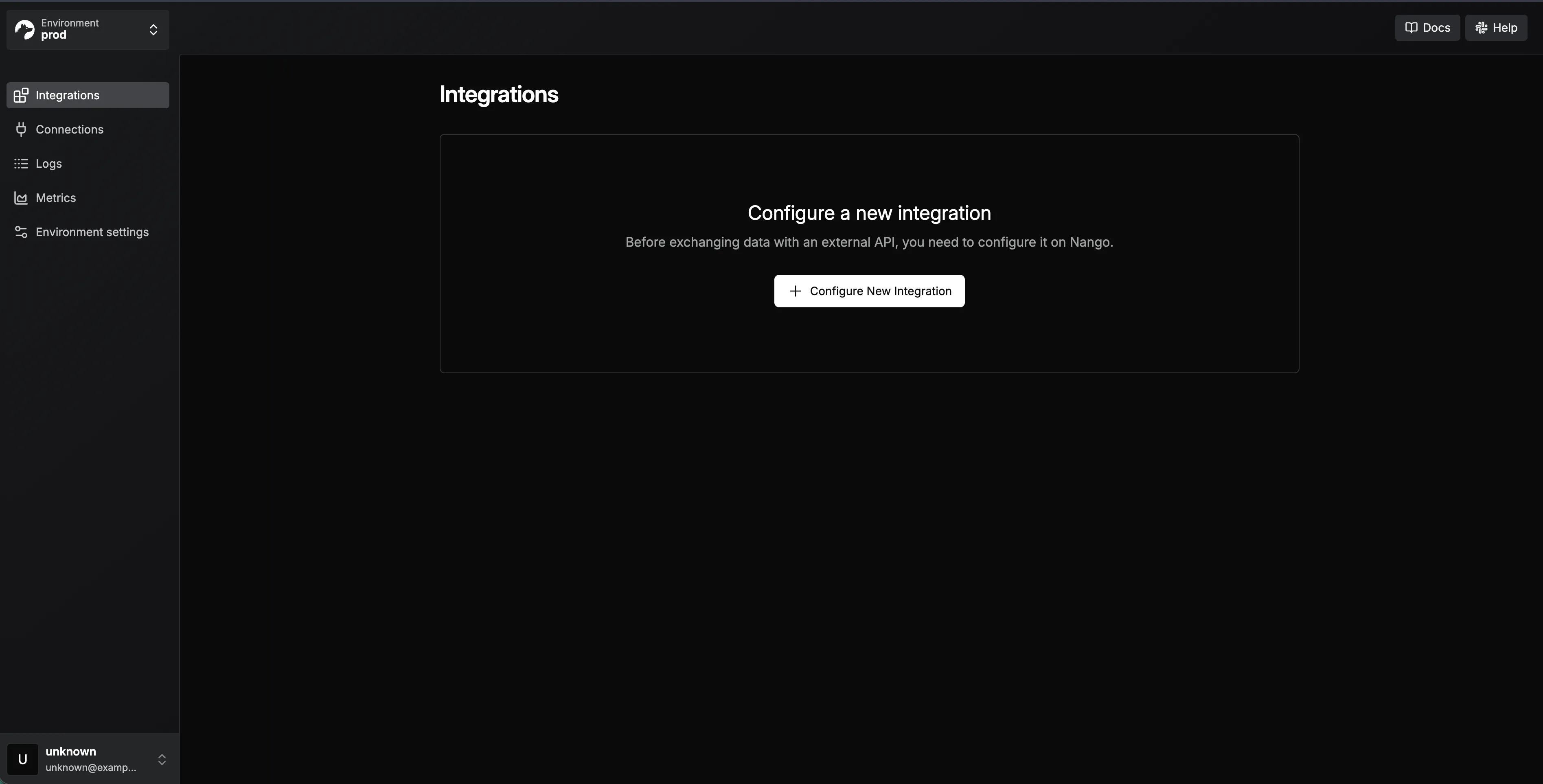
Supported Integrations
| Integration | Auth Method | Notes |
|---|---|---|
| Azure DevOps | BASIC | |
| Box | OAUTH2 | |
| Cisco Catalyst | BASIC | |
| Cisco FMC | BASIC | |
| Cofense Triage | OAUTH2_CC | |
| CrowdStrike Falcon | OAUTH2_CC | |
| Datadog | API_KEY | |
| Dropbox | OAUTH2 | Requires file and account scopes |
| GitHub | OAUTH2 | Scopes: repo, read:org, user |
| GitLab | OAUTH2 | Scopes: api |
| Google Docs | OAUTH2 | Requires documents and drive scopes |
| Google Drive | OAUTH2 | Requires userinfo and drive scopes |
| Google SecOps | OAUTH2 | Configured per connection |
| Grafana | API_KEY | |
| Graylog | BASIC | |
| Jira | OAUTH2 | Requires Jira API and User Identity API scopes |
| Linear | OAUTH2 | Scopes: admin, read, write |
| Microsoft Entra ID | OAUTH2 | |
| Microsoft OneDrive | OAUTH2 | Requires Files scopes |
| Microsoft Outlook Calendar | OAUTH2 | Requires Microsoft Graph calendar and contacts scopes |
| Microsoft Teams | OAUTH2 | Requires Teams and Chat scopes |
| Neo4j | BASIC | |
| NVD | API_KEY | |
| SailPoint | OAUTH2_CC | |
| SAP S/4HANA | BASIC | OData and RFC variants |
| ServiceNow | OAUTH2_CC | |
| Slack | OAUTH2 | Requires channels, chat, and users scopes |
| Smartsheet | OAUTH2 | Requires sheets, folders, and workspaces scopes |
| Sourcegraph | API_KEY | |
| Splunk | API_KEY | |
| Sumo Logic | BASIC | |
| Tenable | API_KEY |
OAUTH2 Integrations
For OAUTH2 integrations, first create an OAuth app within the target integration. The callback URL should be <NANGO_URL>/oauth/callback. Then configure the Client ID and Client Secret in Nango with the values from the integration provider.
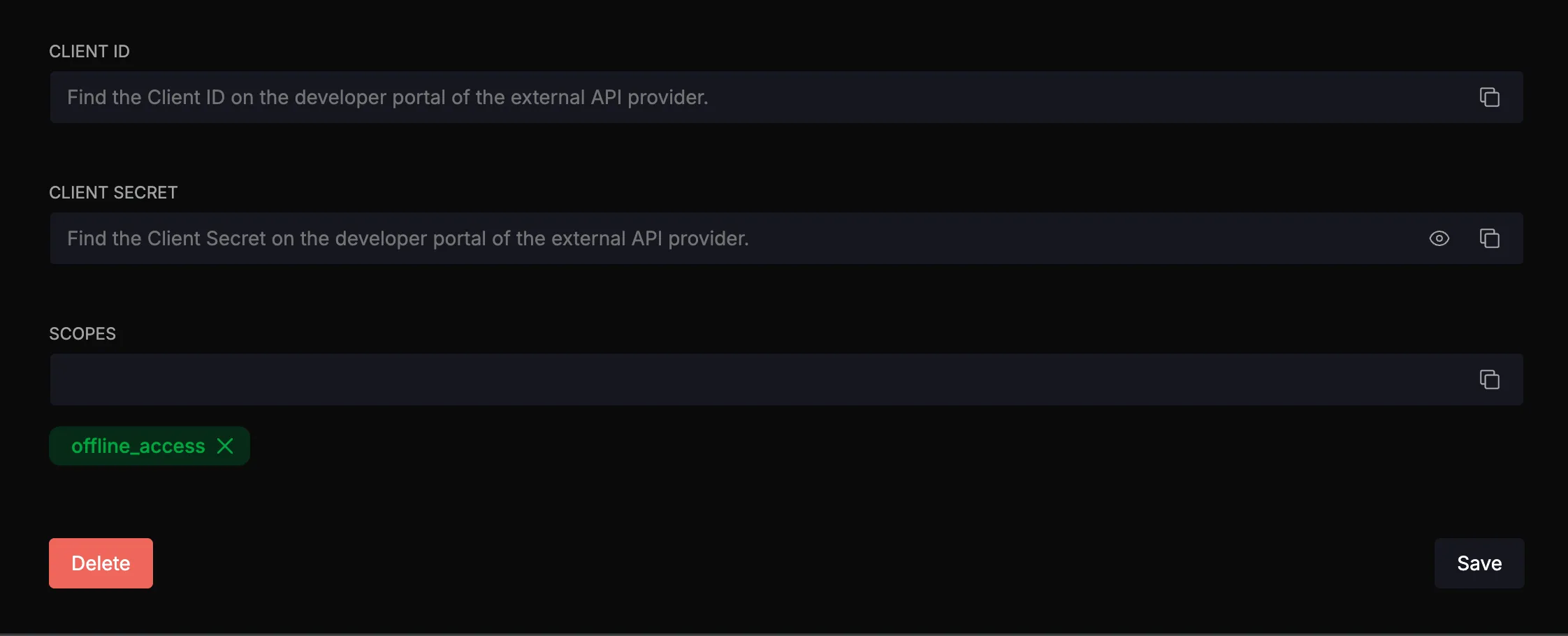
BASIC, API_KEY, and OAUTH2_CC Integrations
No modification to integration configurations is necessary — all required credentials are specified when creating the connection in the Kindo platform.
Provider-Specific Setup Guides
Use the links below to create an OAuth app or obtain credentials for each provider. For OAUTH2 integrations, set the callback URL to <NANGO_URL>/oauth/callback.
OAUTH2
| Provider | Setup Guide |
|---|---|
| Box | Box Developer Documentation — OAuth 2.0 Setup |
| Dropbox | Dropbox App Console |
| GitHub | Creating an OAuth App |
| GitLab | OAuth Provider |
| Google Drive | OAuth 2.0 Protocol |
| Jira | Jira REST API Authentication |
| Linear | Linear OAuth 2.0 Authentication |
| Microsoft (OneDrive, Entra ID, Teams, Outlook) | Microsoft Identity Platform — Register an App |
| Slack | Slack API — Creating an App |
OAUTH2_CC (Client Credentials)
| Provider | Setup Guide |
|---|---|
| CrowdStrike Falcon | See instructions below |
| ServiceNow | ServiceNow OAuth — Inbound |
CrowdStrike Falcon — Client Credentials Setup
Docs: CrowdStrike OpenAPI
- Log into your CrowdStrike Falcon console.
- In the left sidebar, navigate to Support and Resources > API Clients and Keys.
- Create a new API client.
- Set the Base URL to match your CrowdStrike region (e.g.,
US-1,US-2,EU-1, orUS-GOV-1). - Click the client ID row to view and configure scopes. Grant the scopes required by your Kindo integration.
- Copy the Client ID and Client Secret — these are entered when creating the connection in the Kindo platform.
API_KEY
| Provider | Setup Guide |
|---|---|
| Grafana | Service Accounts |
| NVD | Request an API Key |
| Tenable | Authorization |
BASIC
| Provider | Setup Guide |
|---|---|
| Azure DevOps | Personal Access Tokens |
| Sumo Logic | Access Keys |
Integration Webhooks
Integration webhooks are required for using Integration Event triggers. Direct Webhook URL triggers do not require this configuration.
Linear Webhooks
-
In Linear, go to Settings > API and select the OAuth app created earlier.
-
Click the three dots > Edit Application.
-
Enable the Webhooks toggle.
-
Enter
<API_SERVICE_URL>/webhook/integration-connection/linearas the webhook URL. -
Select Issues under “Data change events”.
-
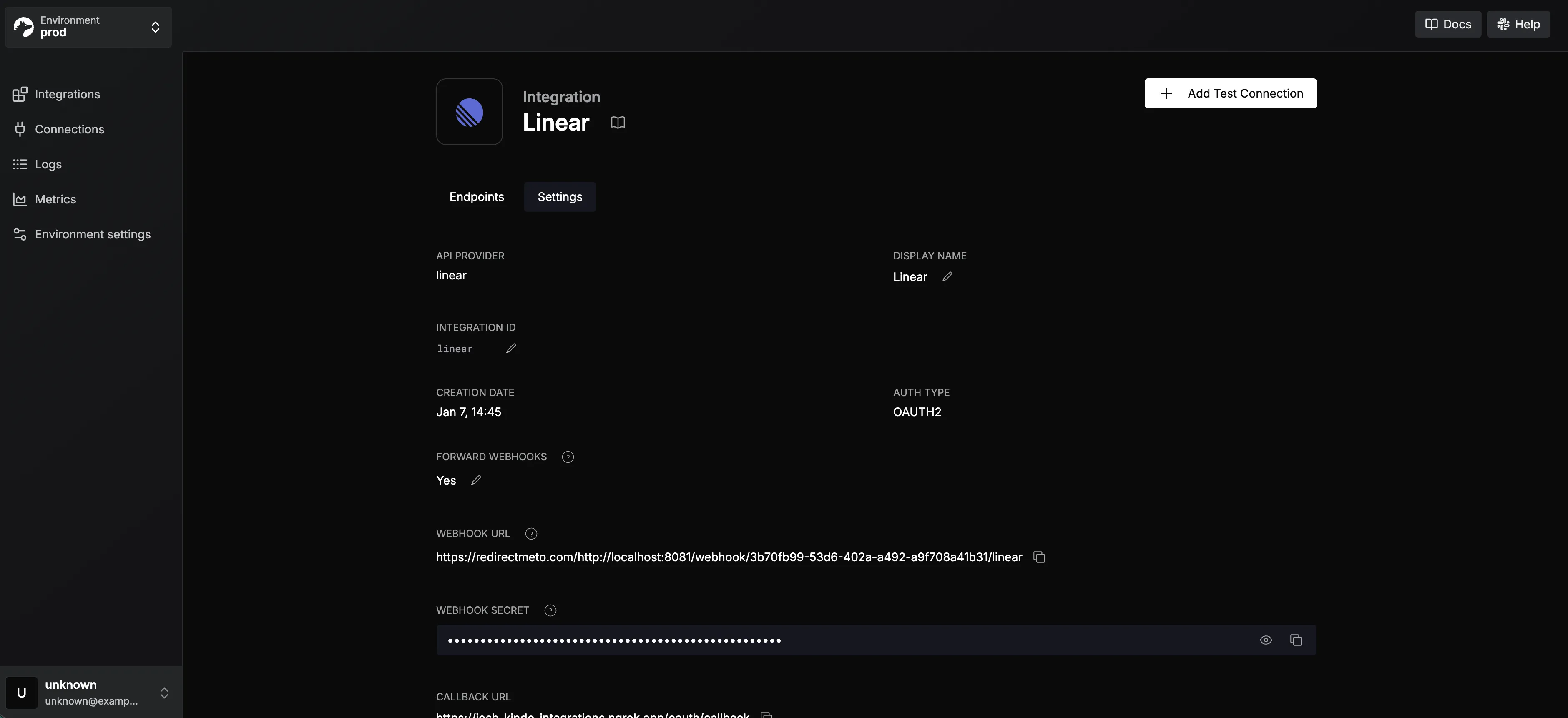
Copy the webhook signing secret.
-
In Nango, paste the secret into the Webhook Secret input and save.
Jira Webhooks
No additional setup is needed for Jira webhooks.
Syncing Integrations with Kindo
After configuring integrations in Nango, sync them with your Kindo application:
-
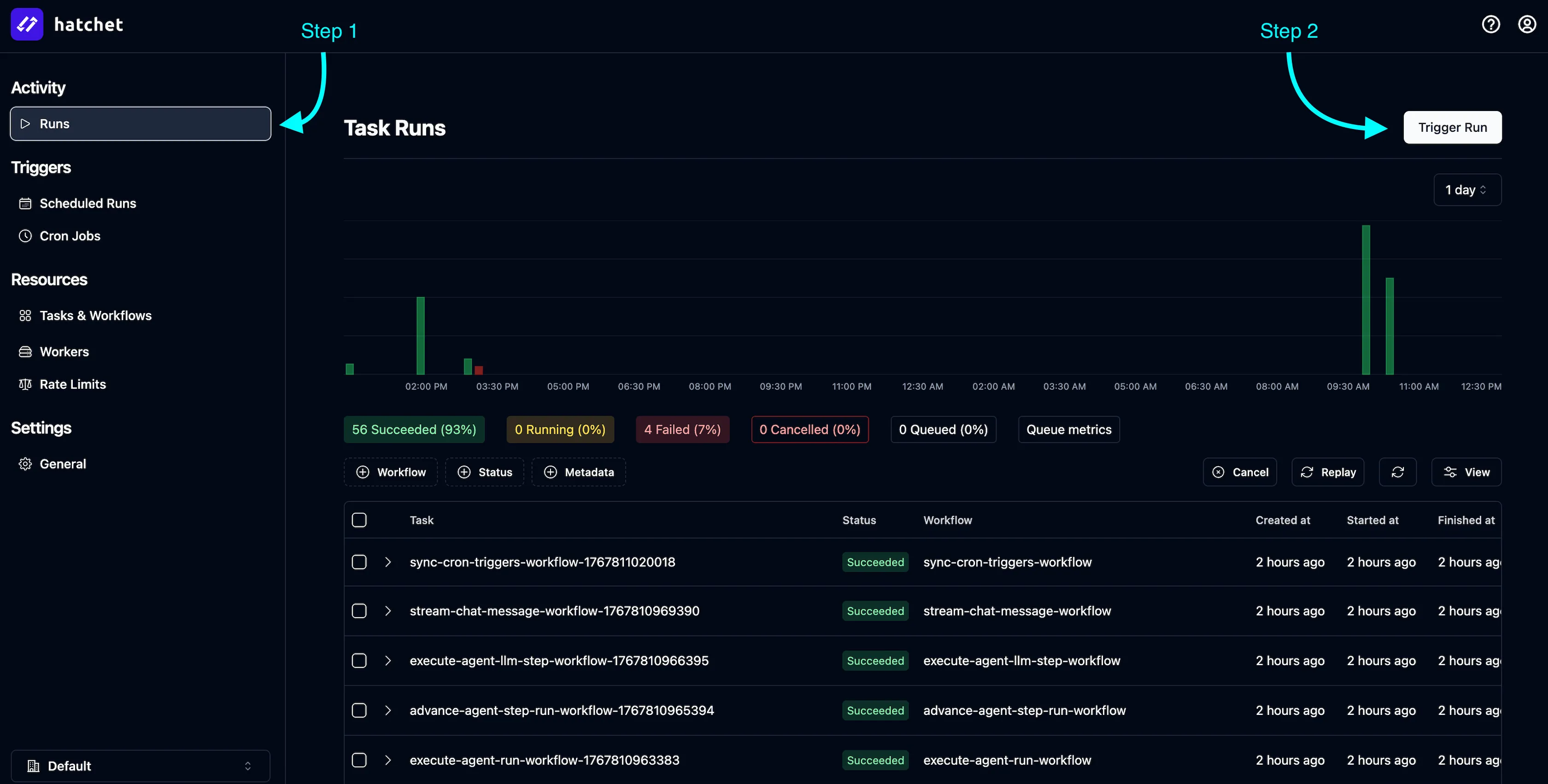
In the Hatchet dashboard, go to Activity > Runs.
-
Click Trigger Run.
-
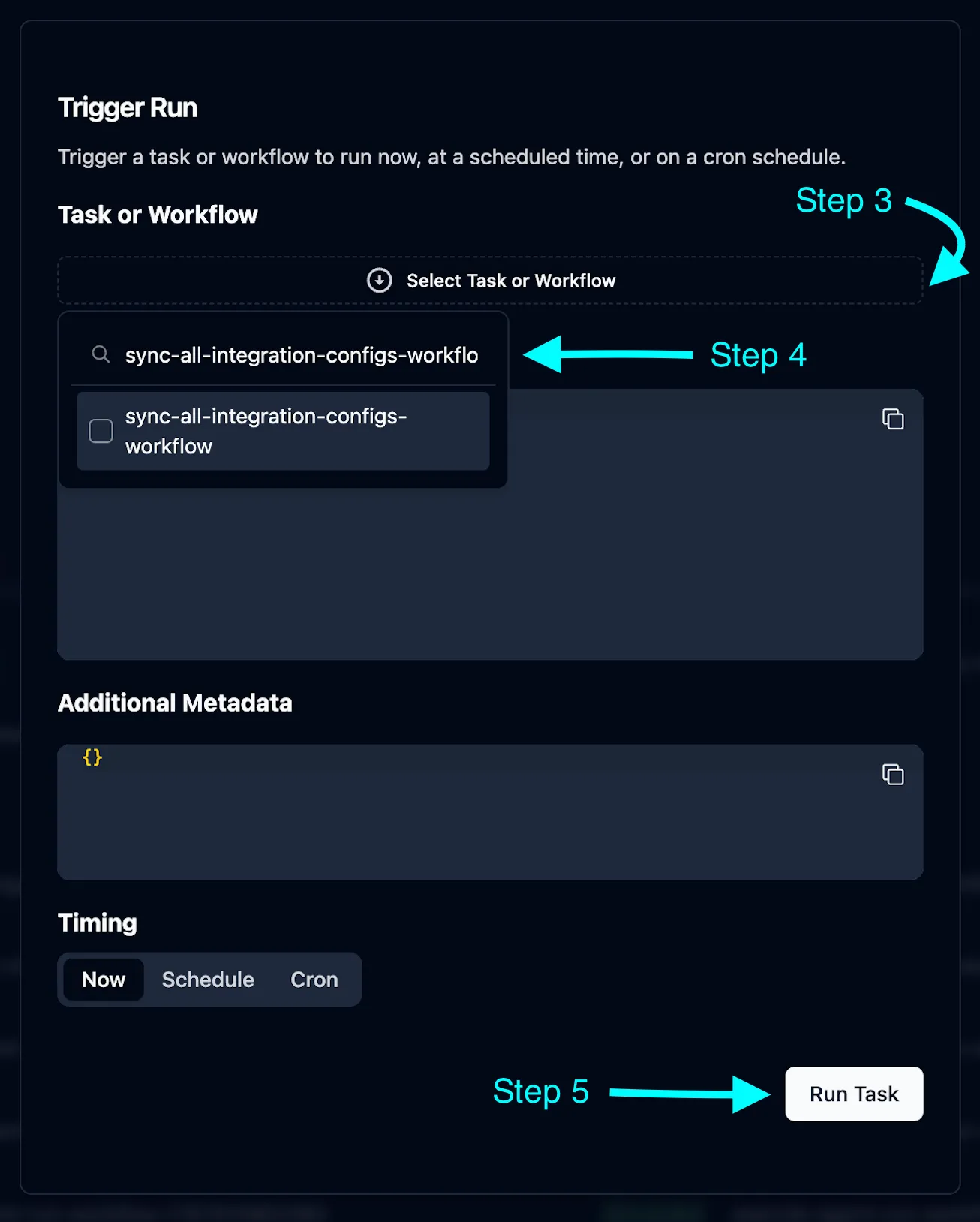
Under Task or Workflow, select
sync-all-integration-configs-workflow. -
Click Run Task.
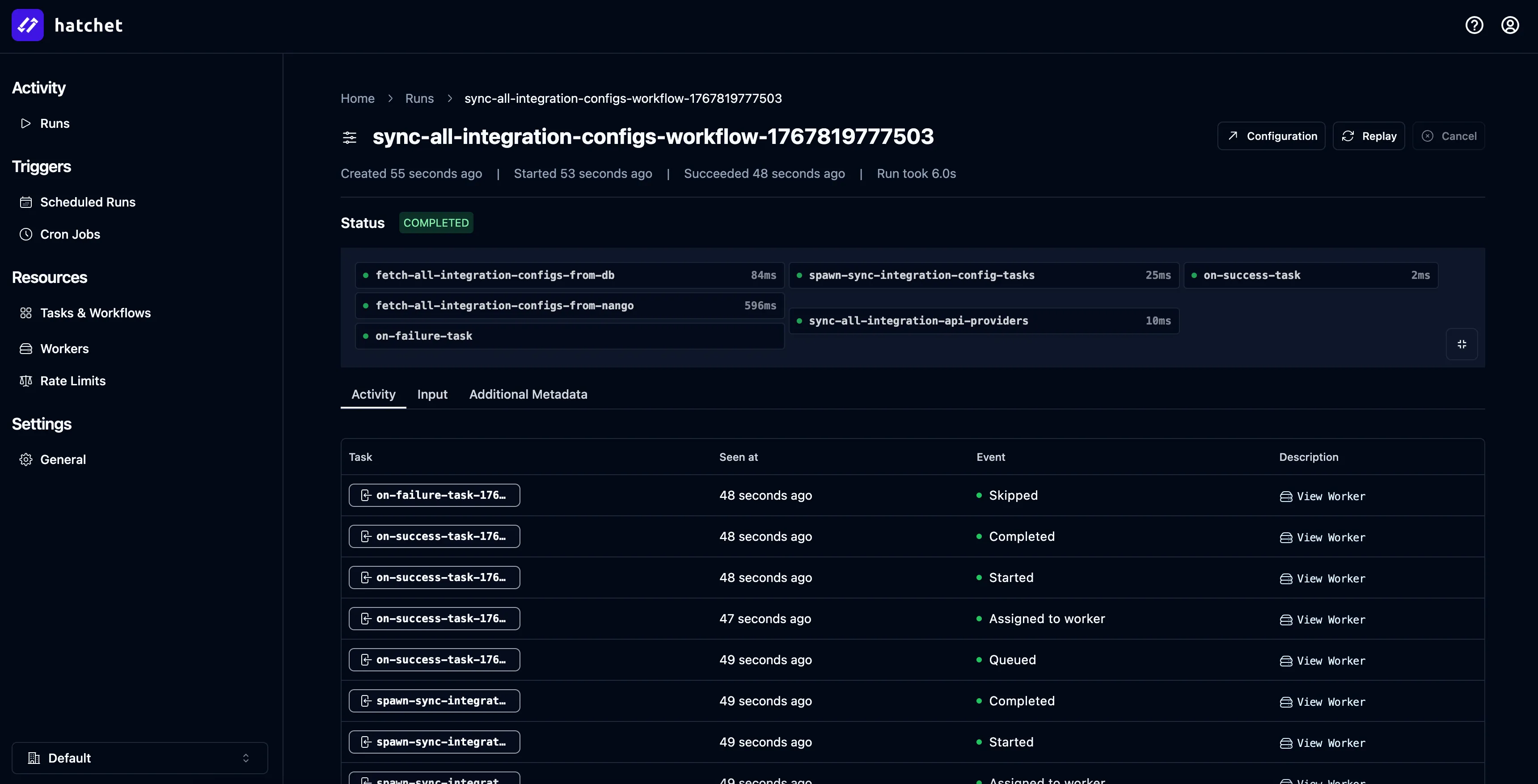
Verify the sync completed successfully:
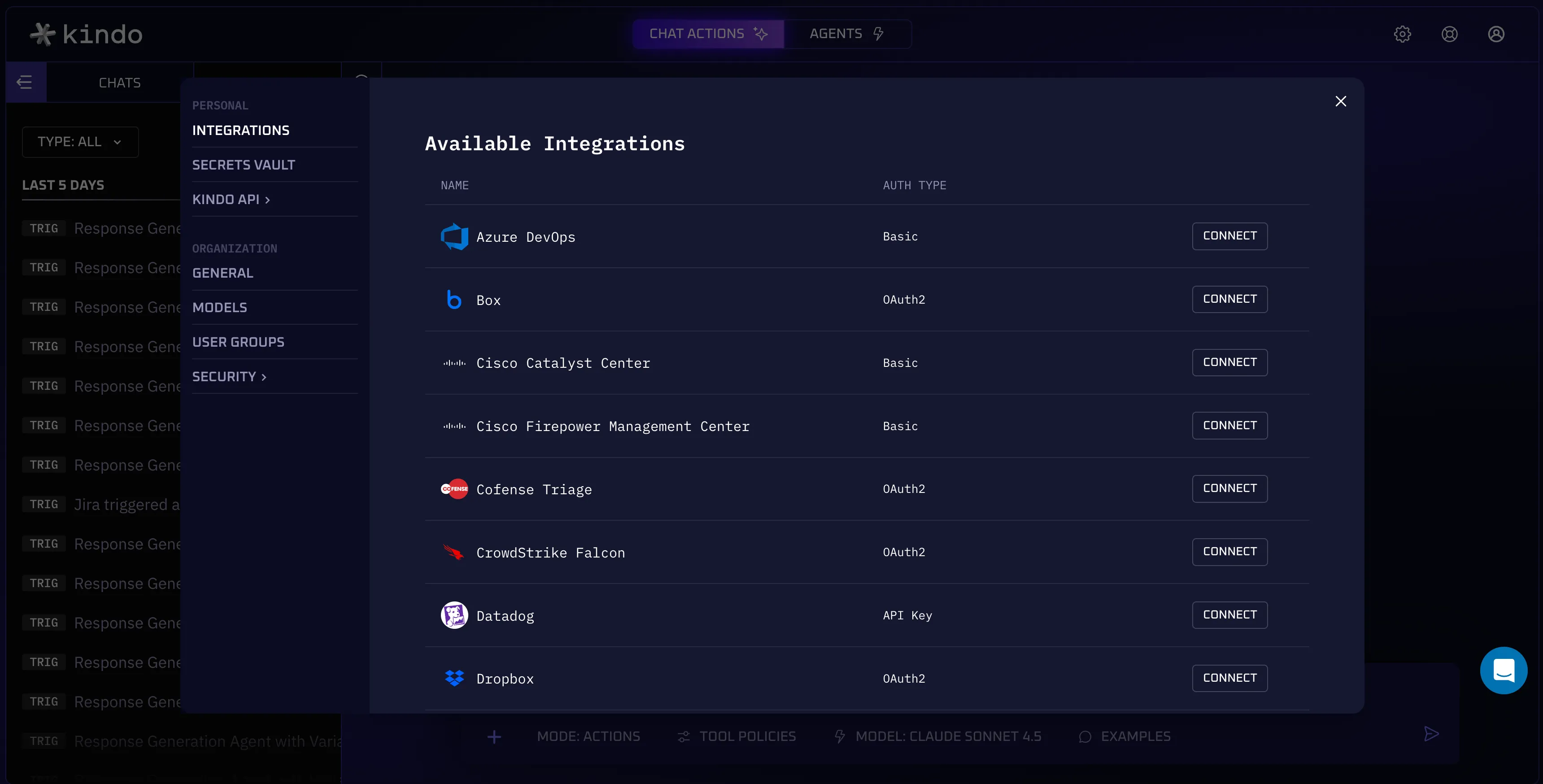
Then confirm in the Kindo app under Settings > Integrations > Available Integrations:
MCP Server Setup
After syncing Nango integrations, connect MCP servers:
- Verify the integration configs appear in the
IntegrationConfigdatabase table. - Update the
mcpServerUrlfield for each integration you want to enable. - For integrations with webhook support (Jira, Linear), set
supportsWebhookstotrue.
Example MCP server URLs (adjust for your namespace):
http://mcp-slack.mcp:80http://mcp-jira.mcp:80http://mcp-linear.mcp:80The exact URL format depends on your Kubernetes namespace configuration and service naming conventions.