
Single Sign-On (SSO) Setup
This guide walks through setting up Single Sign-On (SSO) via SSOReady for Self-Managed Kindo.
SSOReady Components
SSOReady consists of four services:
| Service | Port | Purpose |
|---|---|---|
| ssoready-auth | 9080 | Authentication service |
| ssoready-api | 9081 | API service |
| ssoready-app | 9082 | Web application |
| ssoready-admin | 9083 | IT admin self-serve interface |
Environment Variables
ssoready-auth
AUTH_SERVE_ADDRAUTH_DB— PostgreSQL connection stringAUTH_BASE_URLAUTH_DEFAULT_ADMIN_TEST_MODE_URLAUTH_SAML_STATE_SIGNING_KEY— Generate withopenssl rand -hex 32
ssoready-api
API_SERVE_ADDRAPI_DB— PostgreSQL connection stringAPI_DEFAULT_AUTH_URLAPI_DEFAULT_ADMIN_SETUP_URLAPI_SAML_STATE_SIGNING_KEY— Must matchAUTH_SAML_STATE_SIGNING_KEYAPI_GOOGLE_OAUTH_CLIENT_ID(optional, for Google login)API_MICROSOFT_OAUTH_CLIENT_ID,API_MICROSOFT_OAUTH_CLIENT_SECRET,API_MICROSOFT_OAUTH_REDIRECT_URI(optional, for Microsoft login)
ssoready-app
APP_SERVE_PORT,APP_APP_URL,APP_PUBLIC_API_URL,APP_API_URLAPP_GOOGLE_OAUTH_CLIENT_ID(optional)APP_MICROSOFT_OAUTH_CLIENT_ID,APP_MICROSOFT_OAUTH_REDIRECT_URI(optional)
ssoready-admin
ADMIN_SERVE_PORT,ADMIN_API_URL
Kindo Frontend (Next)
SSOREADY_API_URL,SSOREADY_AUTH_URLSSOREADY_API_KEY,SSOREADY_OAUTH_CLIENT_ID,SSOREADY_OAUTH_CLIENT_SECRET(configured after setup)
Initial Setup
Run Migration
Only needed once during initial setup:
docker run --network=host ssoready/ssoready-migrate:sha-<version> \ -d '<postgresql_url>' upConfigure Login Methods
Update the optional authentication variables in ssoready-app and ssoready-api for your desired login methods (Google, Microsoft, etc.).
Setup Steps
-
Enable the management API for the SSOReady organization:
-- Find the orgSELECT id, entitled_management_api FROM app_organizations;-- Enable management APIUPDATE app_organizationsSET entitled_management_api = TRUEWHERE id = 'actual_org_id'; -
Create environments with:
- Redirect URL:
https://your-kindo-domain/ssoready-callback - OAuth Redirect URI:
https://your-kindo-domain/api/auth/callback/ssoready-saml
- Redirect URL:
-
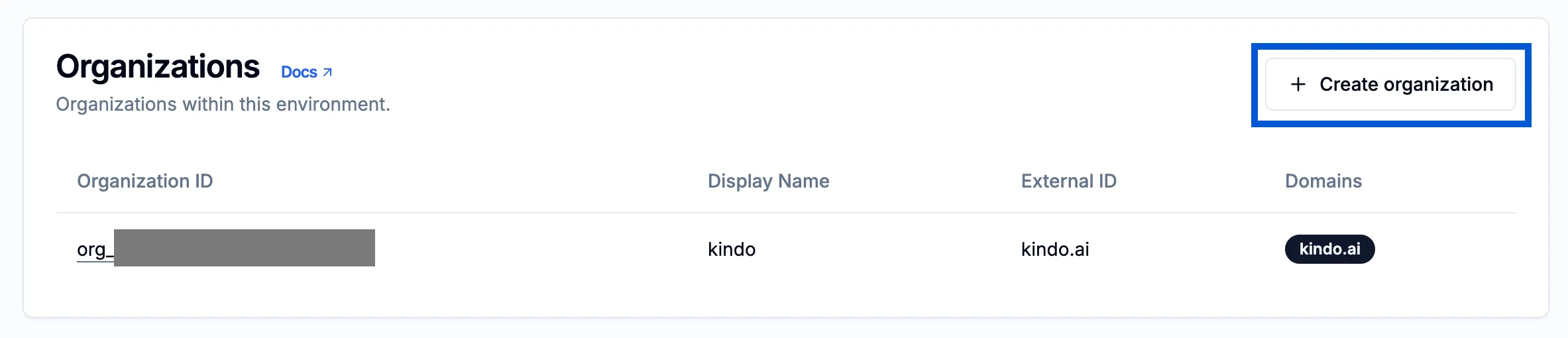
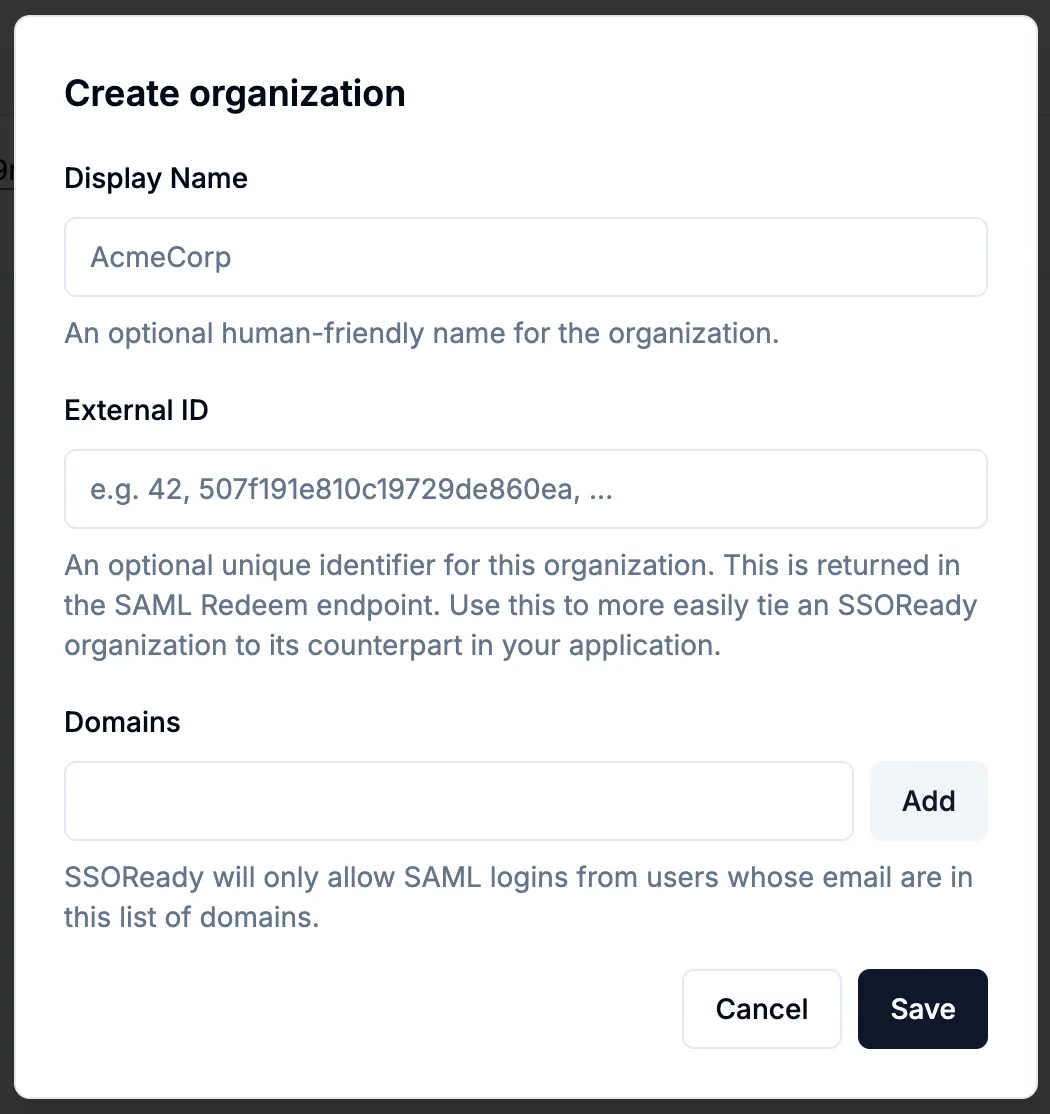
Create organizations within the environment. Add the domain to both External ID and Domains fields.
-
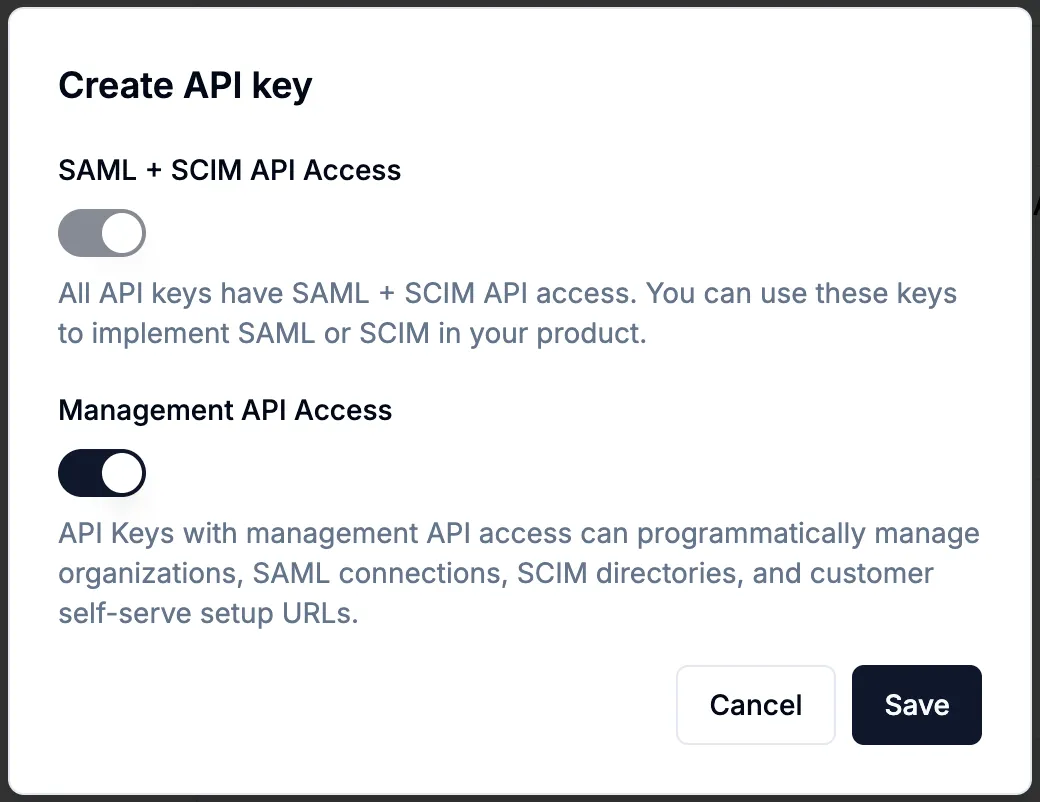
Create API keys: In the SSOReady app, navigate to API Keys and create a key with Management API Access enabled. Set the
SSOREADY_API_KEYin the Next app.
-
Create a SAML OAuth Client: Set
SSOREADY_OAUTH_CLIENT_IDandSSOREADY_OAUTH_CLIENT_SECRETin the Next app.
Create Organization and User in Kindo
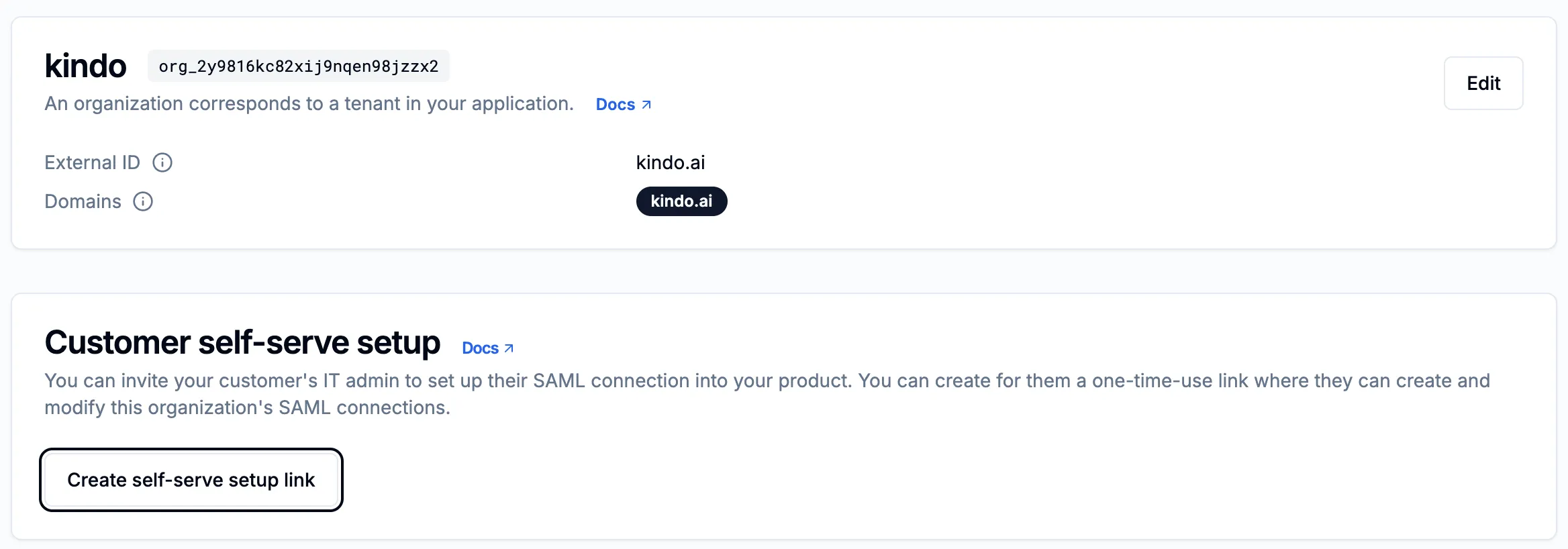
The SSOReady org ID is shown next to the company name in the SSOReady dashboard:
Run this SQL to create the first organization and admin user:
DO $$DECLARE v_user_entity_id VARCHAR := gen_random_uuid()::VARCHAR; v_org_entity_id VARCHAR := gen_random_uuid()::VARCHAR; v_org_dlp_config_id VARCHAR := gen_random_uuid()::VARCHAR; v_org_settings_id VARCHAR := gen_random_uuid()::VARCHAR; v_credit_transaction_id VARCHAR := gen_random_uuid()::VARCHAR; v_sso_domain_id VARCHAR := gen_random_uuid()::VARCHAR;
p_name VARCHAR := 'Admin Name'; -- Replace p_user_id VARCHAR := '<cuid>'; -- Generate a CUID p_org_id VARCHAR := '<cuid>'; -- Generate a CUID p_sso_ready_org_id VARCHAR := NULL; -- SSOReady org ID p_sso_domain VARCHAR := NULL; -- SSO domainBEGIN INSERT INTO "Entity" (id) VALUES (v_org_entity_id); INSERT INTO "Entity" (id) VALUES (v_user_entity_id); INSERT INTO "DlpFiltersConfig" (id) VALUES (v_org_dlp_config_id); INSERT INTO "OrgSettings" (id) VALUES (v_org_settings_id);
INSERT INTO "Org" ( id, "createdAt", "updatedAt", "paymentTier", "entityId", "baseDlpFiltersConfigId", "settingsId", "ssoReadyOrgId" ) VALUES ( p_org_id, NOW(), NOW(), 'ENTERPRISE', v_org_entity_id, v_org_dlp_config_id, v_org_settings_id, p_sso_ready_org_id );
IF p_sso_domain IS NOT NULL THEN INSERT INTO "OrgSsoDomain" (id, "orgId", domain, "createdAt", "updatedAt") VALUES (v_sso_domain_id, p_org_id, LOWER(p_sso_domain), NOW(), NOW()); END IF;
INSERT INTO "CreditTransaction" ( id, "createdAt", "orgId", type, amount, "creditsPerUsd" ) VALUES ( v_credit_transaction_id, NOW(), p_org_id, 'INITIAL_ALLOTMENT', 2000000, 10000 );
INSERT INTO "User" ( id, name, email, "orgId", "orgRole", "createdAt", "updatedAt", "idpId", "entityId" ) VALUES ( p_user_id, p_name, p_email, p_org_id, 'Admin', NOW(), NOW(), NULL, v_user_entity_id );END $$;Establish SAML Connection
-
Log in to the SSOReady app (port 9082).
-
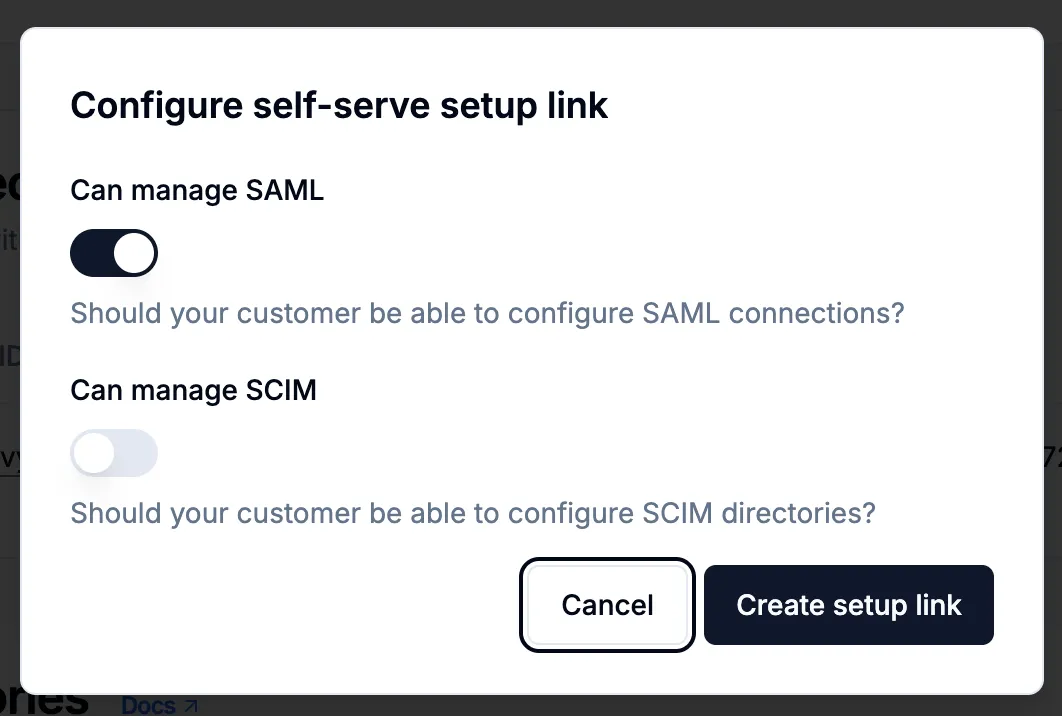
Create a self-serve setup link (without SCIM). Copy the one-time-use URL.
-
Navigate to the link and follow instructions.
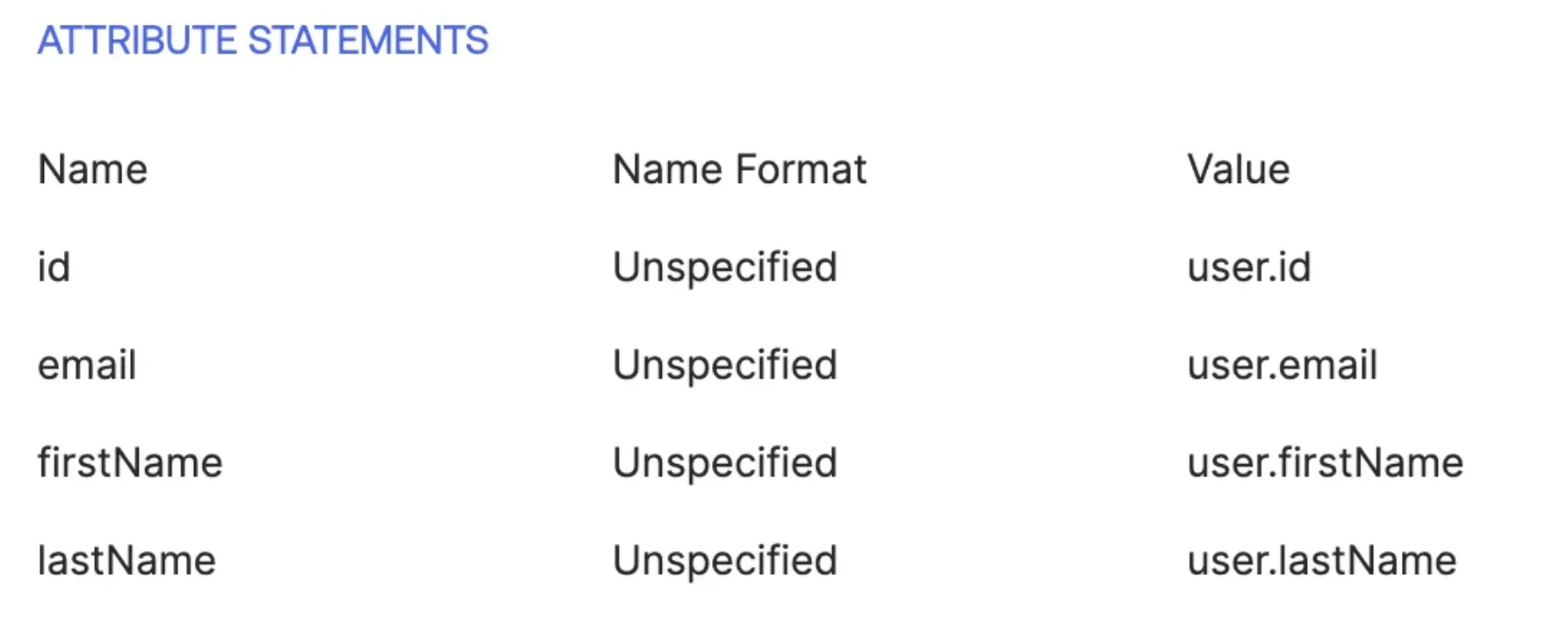
- Map attributes in your IdP (Entra, Okta, etc.). SSOReady does not rewrite incorrect incoming SAML attributes on your behalf.
- Ensure the email claim is mapped correctly, or login/JIT provisioning will fail.
- Set up
firstNameandlastNameif names should appear in the Kindo app.
Provider-specific setup guides (SSOReady):
-
ADFS (example)
- Create a Relying Party Trust in ADFS using the SP Entity ID + ACS URL shown in the SSOReady SAML connection.
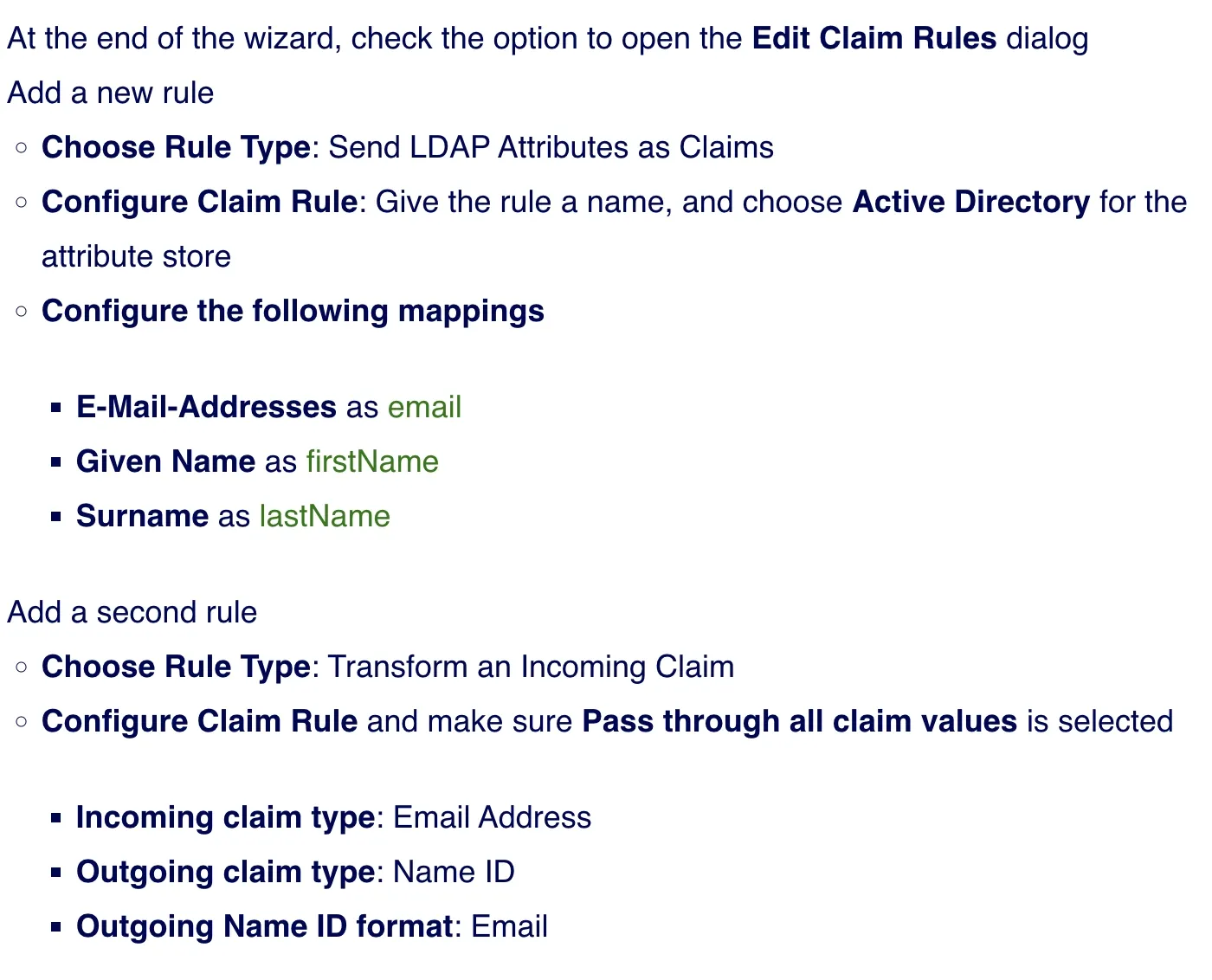
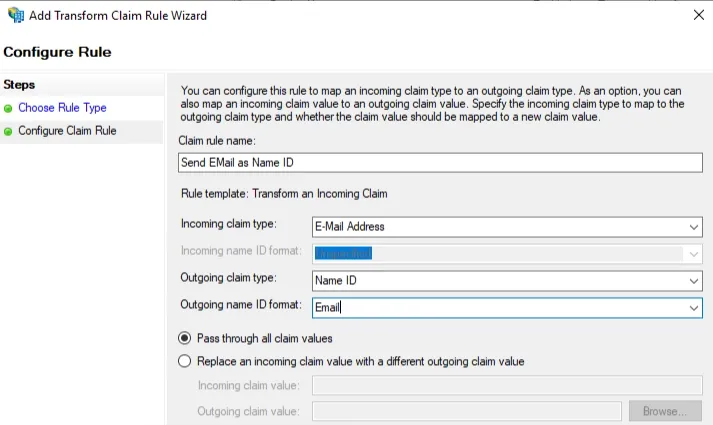
- Configure claim rules (critical):
- Send LDAP Attributes as Claims:
E-Mail-Addresses→emailGiven Name→firstNameSurname→lastName
- Transform an Incoming Claim:
- Incoming claim type:
E-Mail Address - Outgoing claim type:
Name ID(format:Email) - Select Pass through all claim values
- Incoming claim type:
- Send LDAP Attributes as Claims:
-
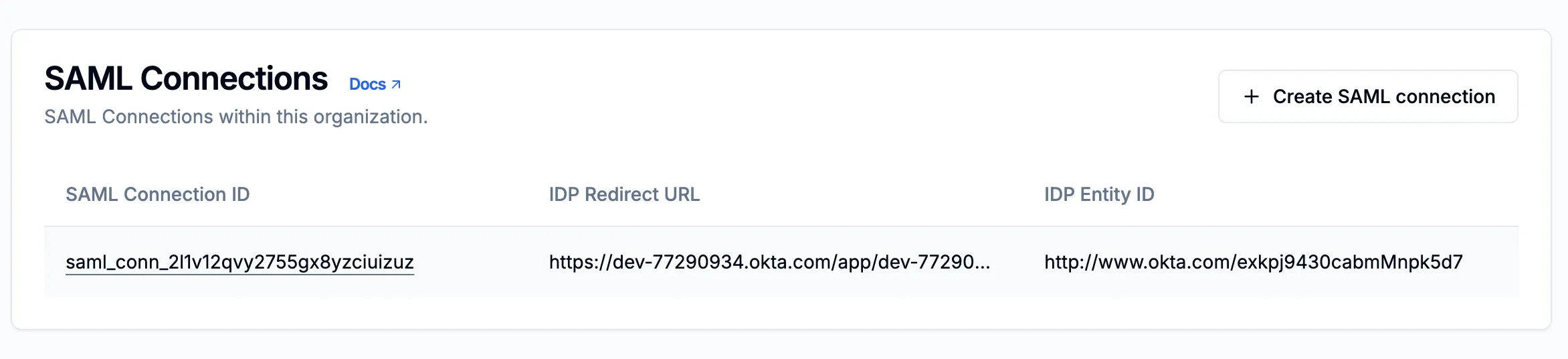
Verify the SAML connection appears in the listed connections.
-
SSO sign-in and JIT (Just-In-Time) provisioning are now enabled. Admins can toggle SSO enforcement.
Useful SQL Queries
Update SSOReady org ID:
UPDATE "Org"SET "ssoReadyOrgId" = '<ssoReadyOrgId>'WHERE id = '<kindoOrgId>';Enforce SSO:
UPDATE "OrgSettings"SET "ssoEnforced" = trueWHERE id = (SELECT "settingsId" FROM "Org" WHERE id = '<kindoOrgId>');Add SSO domain:
INSERT INTO "OrgSsoDomain" (id, "orgId", domain, "createdAt", "updatedAt")VALUES (gen_random_uuid(), '<kindoOrgId>', 'yourdomain.com', NOW(), NOW());