
AI Chat
Kindo AI Chat provides a secure, enterprise-grade interface for interacting with AI models. Unlike consumer chatbots, every conversation runs through Kindo’s governance layer with DLP filtering, audit logging, and role-based access controls.
Key Capabilities
Section titled “Key Capabilities”- Multi-model access — Switch between 26+ LLMs from the same interface. Choose General Purpose, Reasoning, Long Context, or Cybersecurity-focused models depending on your task.
- File attachments — Upload documents, logs, configurations, images, and other files for the model to analyze. Supported direct and tool-assisted formats include text, PDF, CSV, JSON, code files, images for vision models, and audio/video conversion when available.
- Tool integration — Enable Library Search, URL Search, and Web Search to give the model access to your knowledge store, specific URLs, or live internet results.
- Conversation history — Review past conversations filtered by date, type (your own or shared), and topic. Conversations persist across sessions.
- Sharing — Share conversations with team members for review or collaboration.
Enterprise Controls
Section titled “Enterprise Controls”Every chat interaction is protected by Kindo’s security framework:
| Control | What It Does |
|---|---|
| DLP Filters | Automatically detect and redact sensitive data (PII, credentials, secrets) before it reaches the AI model |
| Audit Logging | Every message, model selection, and tool use is logged to your organization’s audit trail |
| RBAC | Administrators control which models and tools are available to each user or group |
| Model Restrictions | Disable specific models organization-wide or restrict them to certain roles |
Model Categories
Section titled “Model Categories”Models are organized by capability:
| Category | Best For | Examples |
|---|---|---|
| General Purpose | Most tasks — writing, analysis, summarization | Claude, GPT-4 |
| Reasoning | Complex analysis, multi-step problem solving | OpenAI o-series |
| Long Context | Large documents, codebases, lengthy analysis | Models with 100k+ token windows |
| Cybersecurity | Threat analysis, vulnerability assessment, red teaming | DeepHat |
Working with Files
Section titled “Working with Files”Attach files to provide context for your queries:

- Click the + button next to the query bar.
- Select files from your machine.
- Choose how the model should process them:
- For All Files — Apply your query to the entire collection
- Per File — Apply your query to each file independently
Image attachments can be provided directly to supported vision models. Audio and video files are processed through file conversion or transcription tools rather than being sent directly to chat models as raw media. Kindo shows an unsupported file type message when a provider rejects a file part that reached the model request.
Toggle tools to extend the model’s capabilities:
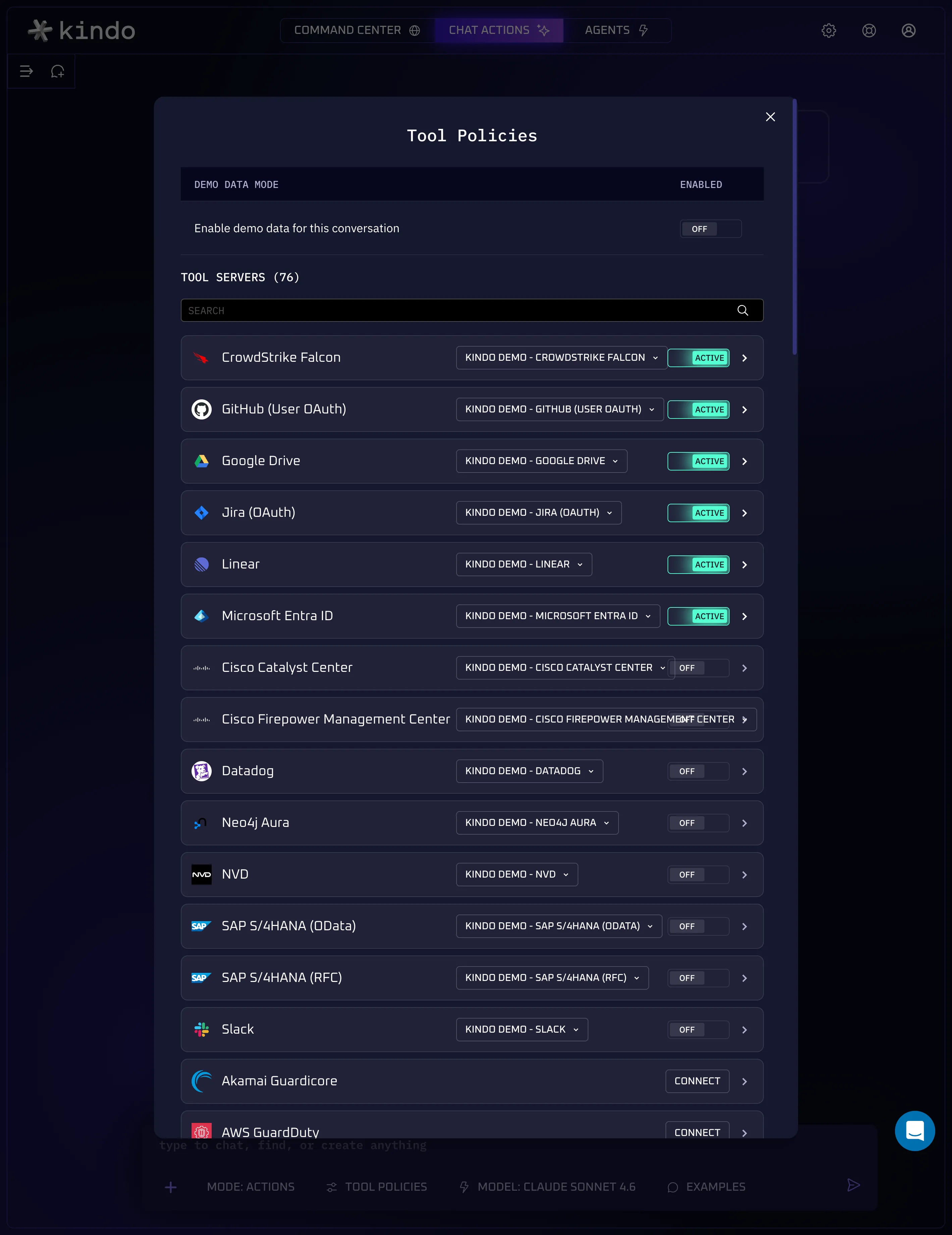
- Library Search — Searches your organization’s uploaded knowledge base using semantic search (embeddings).
- URL Search — Fetches and includes content from a specific URL you provide.
- Web Search — Searches the live internet for current information.
- Platform — Creates and edits agents, enables or disables their tool servers, and attaches or removes existing skills and knowledge. It also lists agents, reads their configuration, starts standalone runs, and inspects runs and conversations. Organization admins can also look up members. Successful creation and edits show an agent preview card with Open Agent and Start chat actions. All actions use your existing access permissions; no integration account is required for Platform itself. Skills and Knowledge Store must be enabled to manage those attachments.
- Integrations — Uses your connected accounts to work with external services.
Tools are enabled per-message and can be combined.
For integrations, choose your active accounts or pin connections to a chat. External clients can use integration and Platform tools through the MCP API.
Context Usage
Section titled “Context Usage”Once the assistant has responded in Actions mode, a circular indicator next to the model selector shows how much of the selected model’s context window has been used. (In Ask mode or before the first response, the model selector shows a bolt icon instead.) The ring fills and changes color as the conversation grows: green under 60%, yellow at 60-79%, red at 80% and above. Hover the ring for a tooltip with the current token count and — when available — the context window total, tokens remaining, and conversation credits consumed. The ring pulses while the model is responding and briefly afterward while the latest counts are refreshed.
When a long conversation approaches the context limit, Kindo automatically compacts it: earlier messages are summarized so the most relevant context is kept while the session continues. A Context summarized marker appears in the conversation when this happens, so the change is visible rather than silent. You do not need to start over or manage the context yourself — your conversation keeps working as it grows.
Next Steps
Section titled “Next Steps”- Create an Agent to automate recurring chat-based tasks
- Configure Security Controls to manage DLP and model access
- Learn about Integrations to connect external data sources