
Security Controls
Kindo maintains security, auditing, and compliance controls to ensure users and agents operate within organizational requirements. Access these controls via Settings (gear icon) > Organization > Model Access & DLP.
Model Access & DLP
Section titled “Model Access & DLP”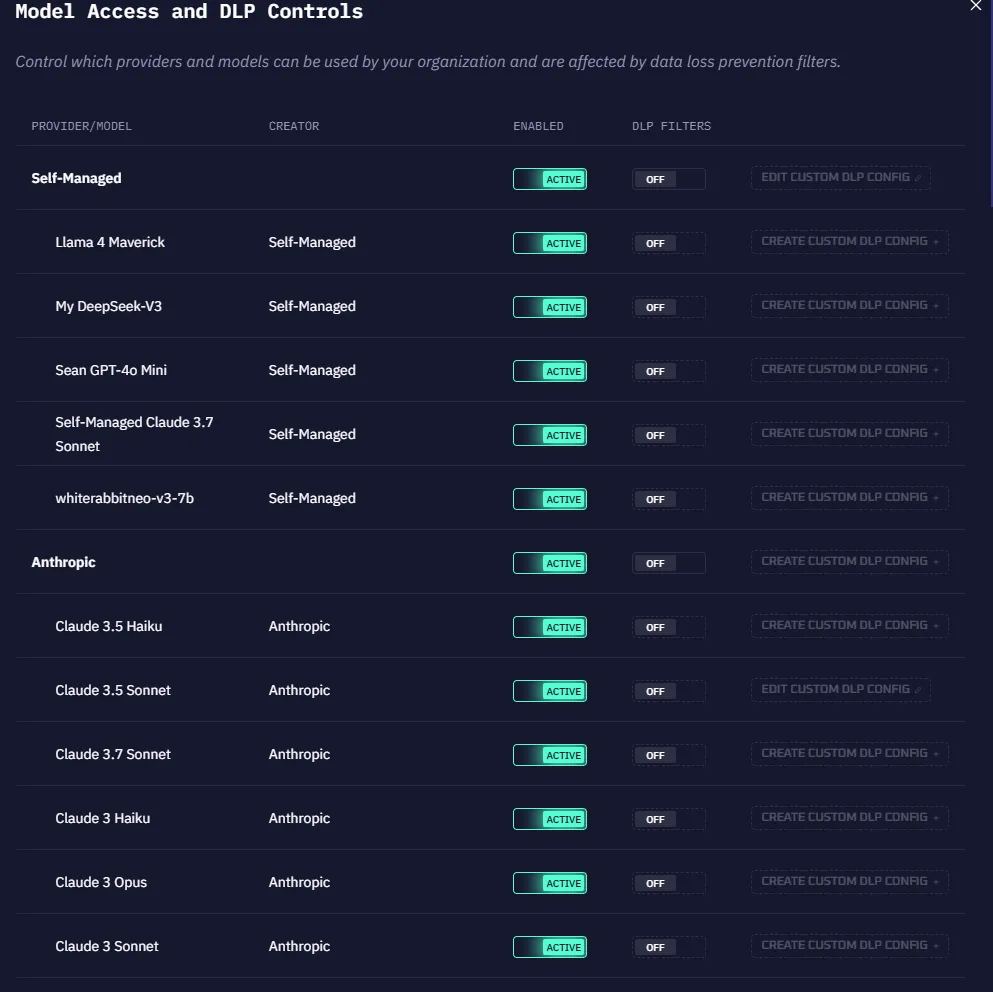
This section manages which AI models are enabled for your organization.
- Active — Users can access the model; agent and API requests succeed.
- Disabled — The model is hidden from users; agent and API requests to it will fail.
You can also enable or disable DLP filters for specific models and manage model versions from this screen.
Default Settings
Section titled “Default Settings”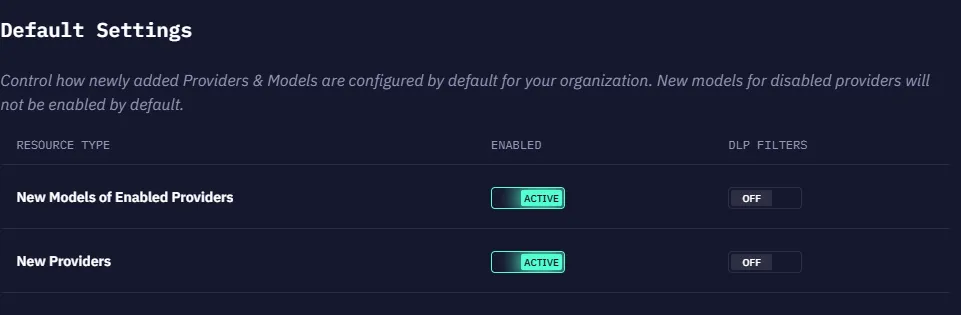
Configure default behavior when new models are added:
- New Provider — Whether adding new model providers is permitted in your organization.
- New Models of Enabled Providers — Whether new models from an already-enabled provider are activated by default.
Data Loss Prevention (DLP) Filters
Section titled “Data Loss Prevention (DLP) Filters”
DLP filters are redaction mechanisms that tokenize sensitive data in outbound requests to AI models. When enabled, sensitive information is automatically masked in chat, agent, and API calls before reaching the model.
Kindo includes several built-in DLP filter types. You can also define custom filter patterns using:
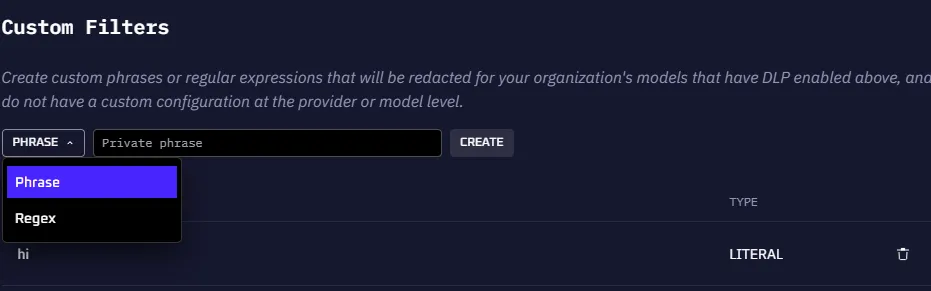
- String literals — Exact text matches
- Phrases — Multi-word patterns
- Regular expressions — Pattern-based matching
Integration Access
Section titled “Integration Access”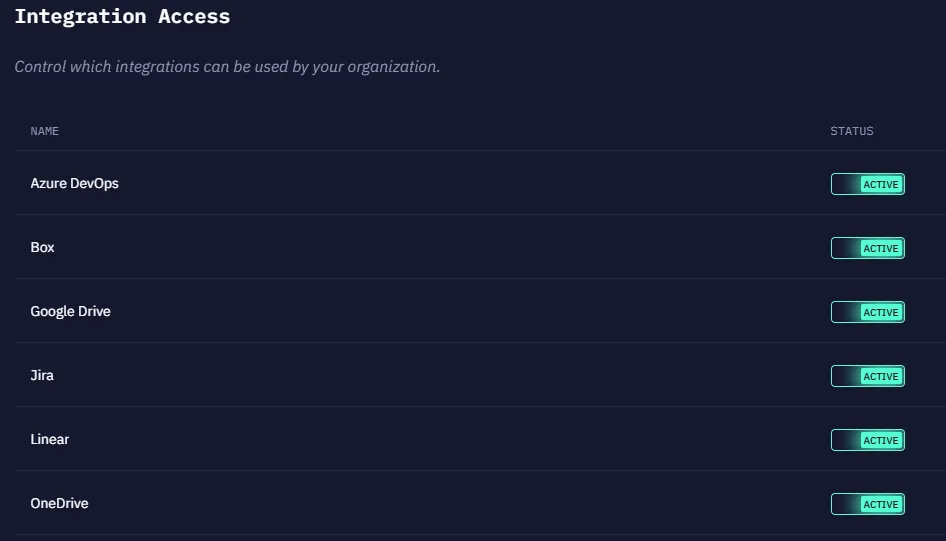
Control which integrations are available to users:
- Active — Users can use the integration to connect with external systems.
- Off — The integration is unavailable to users in the organization.
For per-user-group overrides and per-tool granularity, see Tool Action Access Controls. For the enterprise pattern of isolating an integration to a single team (e.g., legal, finance), see Integration Identity Isolation.
Audit Log
Section titled “Audit Log”Kindo records audit events whenever users, AI agents, or administrators perform actions within the platform. These events are retained in a log to provide a record of activity for security review, compliance, and incident investigation. Audit logging is available to organizations on the Enterprise plan.
What the Audit Log Captures
Section titled “What the Audit Log Captures”Every audit event includes a timestamp, the acting user, the organization, and structured metadata. Events fall into three categories:
- User actions — Chat messages, file uploads, workflow management, connecting and disconnecting integrations, API key and secret management, copilot activity
- AI agent actions — Tool executions (success/failure), LLM requests, sandboxed code execution, DLP filter events
- Administrative changes — Member and invite management, user group changes, security configuration updates, model management, organization settings
Full event type reference
User actions: Creating chats, sending messages, sharing conversations, uploading/removing files, creating/updating/deleting workflows, connecting and disconnecting integrations, managing API keys and secrets, copilot usage, viewing and exporting audit logs.
AI agent actions: Successful and failed tool calls, LLM inference requests, sandboxed code runs, DLP filter redactions, automated API step generation in workflows.
Administrative changes: Adding/removing/changing roles for members, managing invitations, creating/updating/deleting user groups, updating security settings, configuring tool servers, managing sharing permissions, creating/deleting DLP patterns, adding/removing models, changing organization settings, and Cross App Access configuration and client actions — saving or deleting the configuration, creating or revoking a client, and approving a CIMD client.
Each Cross App Access token issued or denied is also logged, but as a system event with no acting user — it isn’t attributed to an admin or end user, so it’s excluded when filtering the log to user-initiated events. A token is logged as denied only once the organization is identified; an earlier failure (invalid client credentials, a malformed assertion, a missing or unrecognized audience tenant ID, or an untrusted issuer) is recorded only in server logs.
Viewing Events
Section titled “Viewing Events”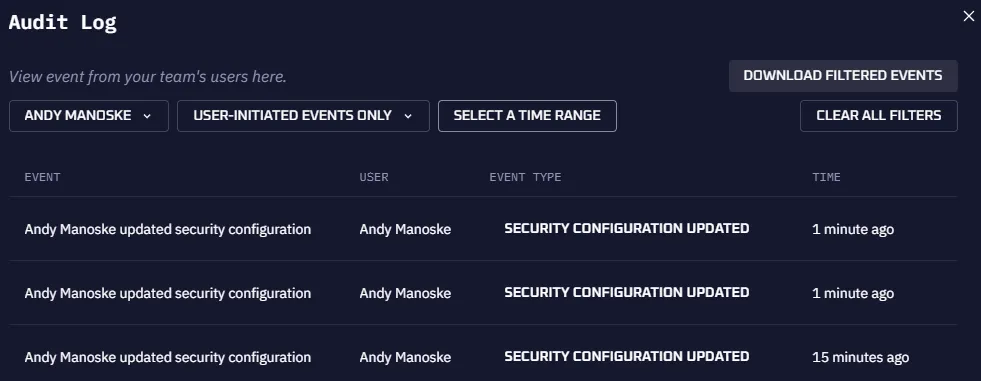
Navigate to Settings > Organization > Audit Log to view events.
Filter by:
- User — Events from a specific user
- Activity type — Filter by event category or specific event type
- Date range — Narrow results to a specific time window
Event Details
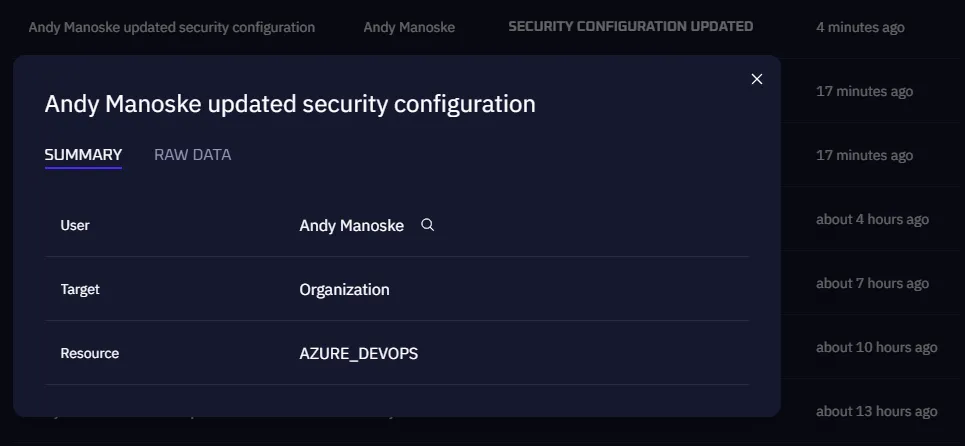
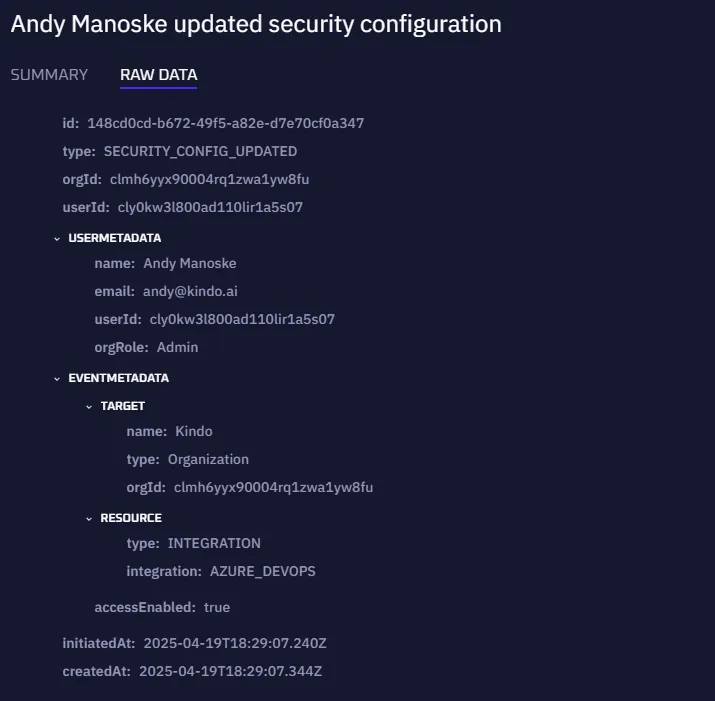
Section titled “Event Details”Click any event row to view its full details:
- Summary — Human-readable description of the action
- Raw Data — Full JSON payload including files accessed, metadata, and contextual information
Exporting Events
Section titled “Exporting Events”Click Download CSV to export filtered events. Kindo generates the CSV asynchronously and emails a download link to you. The link expires after a set period.
Storage
Section titled “Storage”Audit events are written to Kindo’s application database by default — no additional configuration required. Events are queryable in the admin UI and exportable as CSV.
Troubleshooting
Section titled “Troubleshooting”Events not appearing — Confirm the organization is on the Enterprise plan and that the AUDIT_LOG_DISABLED feature flag is not enabled in Unleash.
CSV export email not received — Verify SMTP is configured correctly on the Kindo API service and that the requesting user’s email address is correct.
Sharing Permissions
Section titled “Sharing Permissions”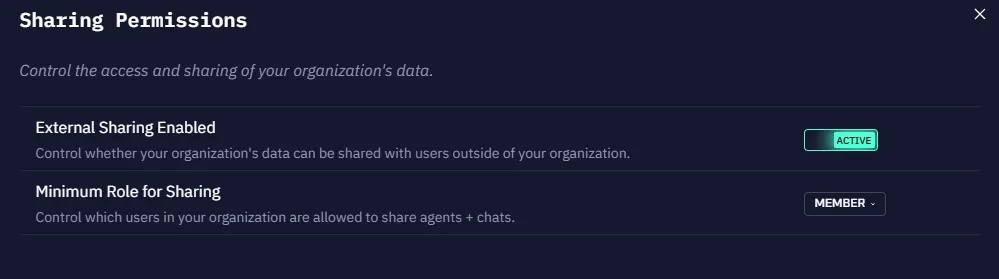
Control whether users can share agents or chats with individuals outside the organization:
- When External Sharing is Active, configure the minimum user role required for sharing.
- When External Sharing is disabled, users cannot share links to chats or agents with anyone outside their configured identity provider.