
AI Chat
Kindo AI Chat provides a secure, enterprise-grade interface for interacting with AI models. Unlike consumer chatbots, every conversation runs through Kindo’s governance layer with DLP filtering, audit logging, and role-based access controls.
Key Capabilities
- Multi-model access — Switch between 26+ LLMs from the same interface. Choose General Purpose, Reasoning, Long Context, or Cybersecurity-focused models depending on your task.
- File attachments — Upload documents, logs, configurations, and other files for the model to analyze. Supported formats include text, PDF, CSV, JSON, and code files.
- Tool integration — Enable Library Search, URL Search, and Web Search to give the model access to your knowledge store, specific URLs, or live internet results.
- Conversation history — Review past conversations filtered by date, type (your own or shared), and topic. Conversations persist across sessions.
- Sharing — Share conversations with team members for review or collaboration.
Enterprise Controls
Every chat interaction is protected by Kindo’s security framework:
| Control | What It Does |
|---|---|
| DLP Filters | Automatically detect and redact sensitive data (PII, credentials, secrets) before it reaches the AI model |
| Audit Logging | Every message, model selection, and tool use is logged to your organization’s audit trail |
| RBAC | Administrators control which models and tools are available to each user or group |
| Model Restrictions | Disable specific models organization-wide or restrict them to certain roles |
Model Categories
Models are organized by capability:
| Category | Best For | Examples |
|---|---|---|
| General Purpose | Most tasks — writing, analysis, summarization | Claude, GPT-4 |
| Reasoning | Complex analysis, multi-step problem solving | OpenAI o-series |
| Long Context | Large documents, codebases, lengthy analysis | Models with 100k+ token windows |
| Cybersecurity | Threat analysis, vulnerability assessment, red teaming | DeepHat |
Working with Files
Attach files to provide context for your queries:

- Click the + button next to the query bar.
- Select files from your machine.
- Choose how the model should process them:
- For All Files — Apply your query to the entire collection
- Per File — Apply your query to each file independently
Tools
Toggle tools to extend the model’s capabilities:
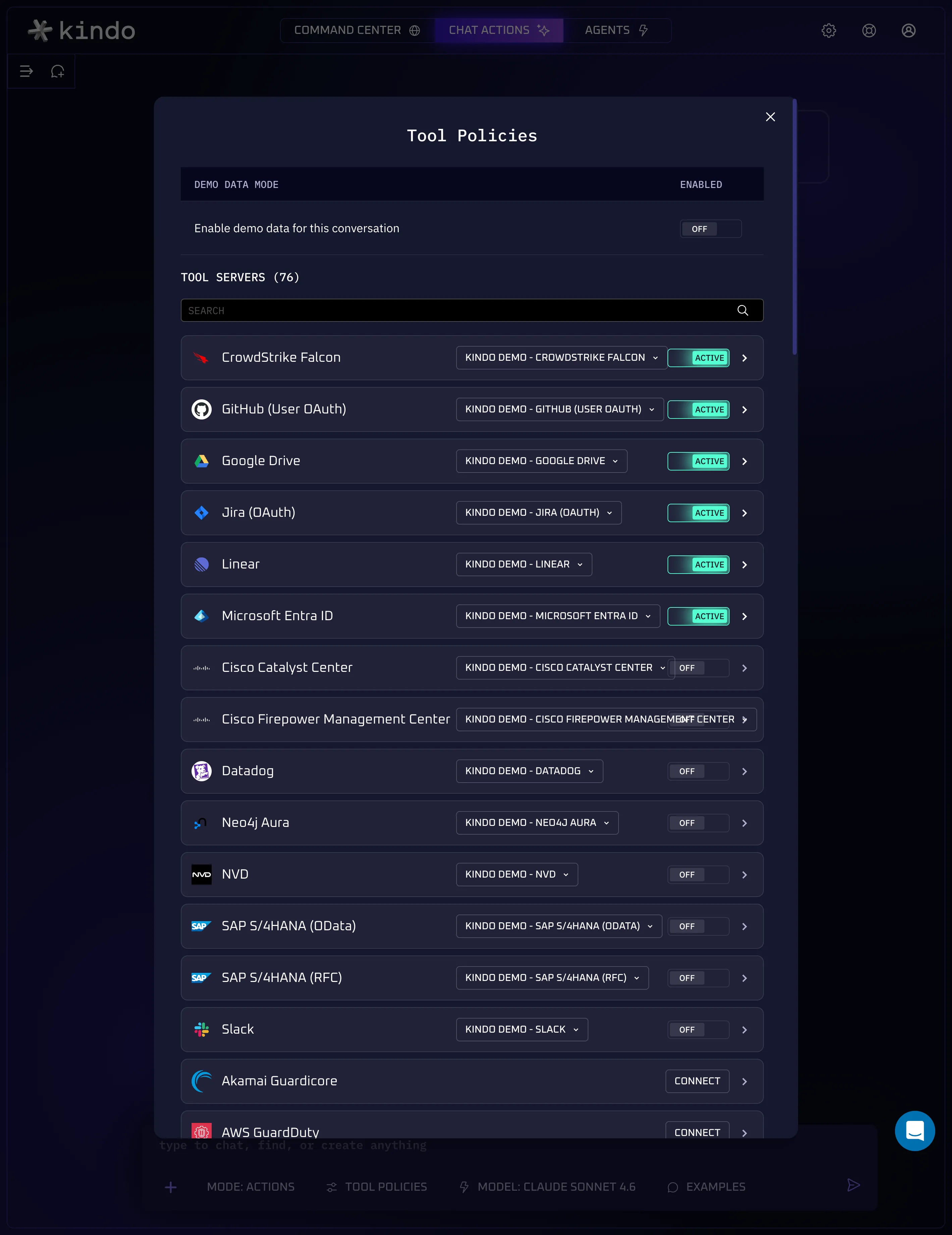
- Library Search — Searches your organization’s uploaded knowledge base using semantic search (embeddings).
- URL Search — Fetches and includes content from a specific URL you provide.
- Web Search — Searches the live internet for current information.
Tools are enabled per-message and can be combined.
Next Steps
- Create an Agent to automate recurring chat-based tasks
- Configure Security Controls to manage DLP and model access
- Learn about Integrations to connect external data sources